
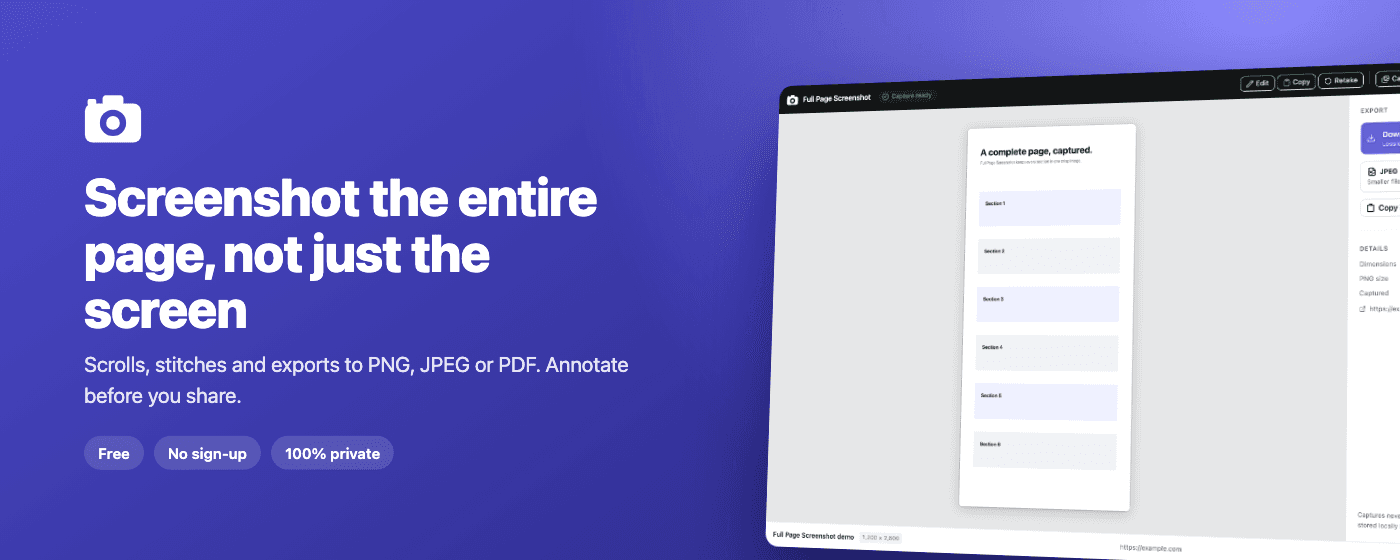
A screenshot tool has one job: give you the page exactly as it looked. Version 2.2 is about doing that job every single time, on the pages that used to trip it up.
Most of what changed in this release is invisible until the moment it matters: a pinned table header that no longer disappears, an arrow that no longer vanishes when you draw it flat, a download that no longer claims success when your disk is full. We went through the extension screen by screen, found every place it could let you down, and fixed them.
Captures that hold together
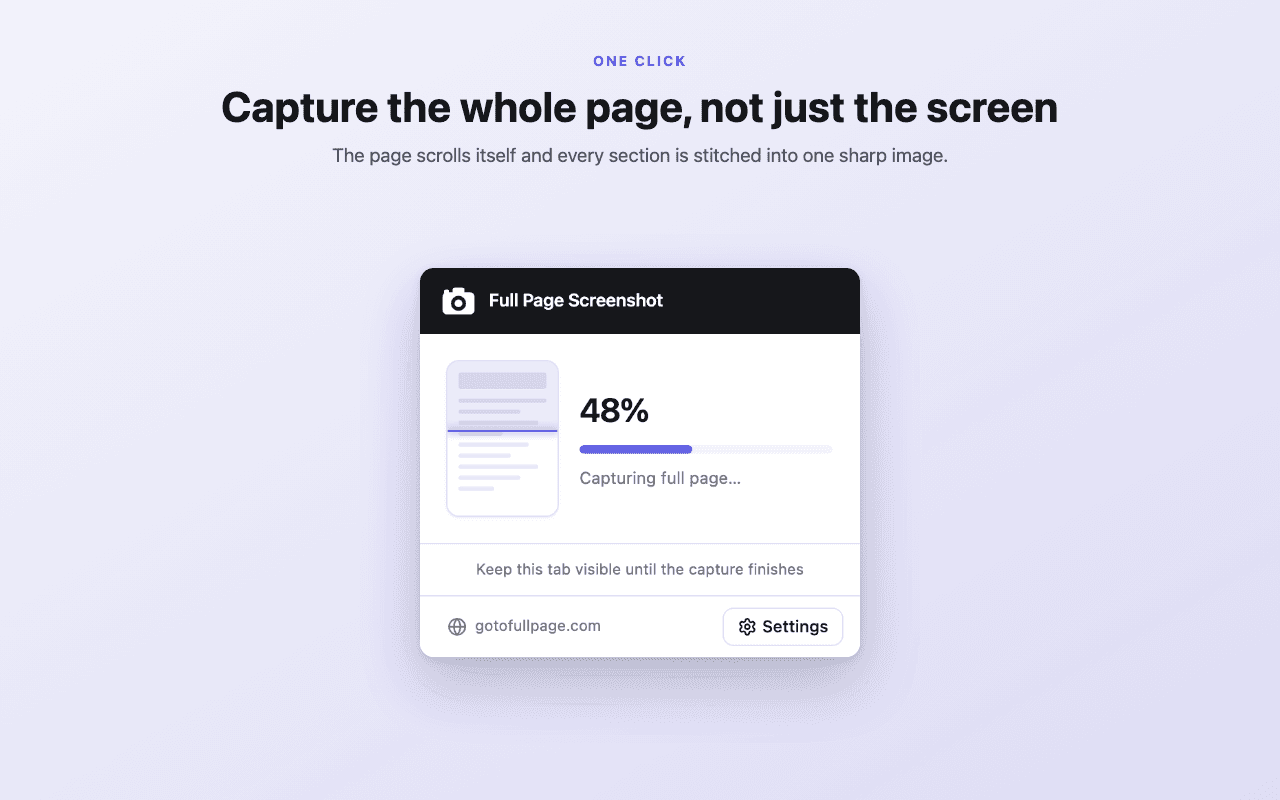
The capture engine got the most attention, because a broken capture is the one thing you cannot edit away.
- Pinned content stays in the picture. Table headers, documentation sidebars and section titles that stick while you scroll used to leave blank gaps. They now appear where they belong.
- Switching tabs is caught, not stitched. If you move to another tab mid-capture, the capture stops and tells you, instead of quietly mixing the other tab into your image.
- Pages that snap as you scroll no longer come out with white bands.
- Your page is always put back. Even if a capture is interrupted, the page restores itself, so you are never left with a tab that will not scroll.
- Updates do not break open tabs. After the extension updates, capturing a tab you already had open just works.
An editor that exports what you see
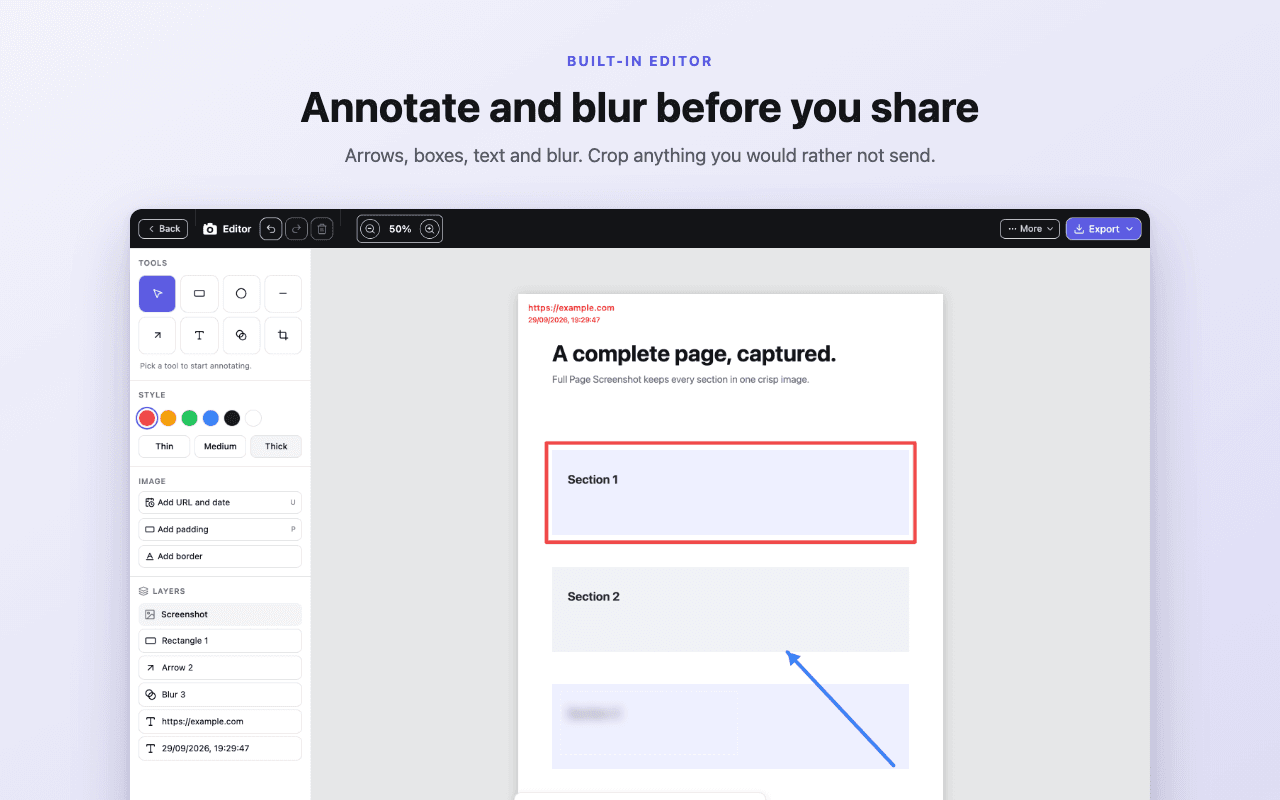
In earlier versions, the preview and the exported file could disagree: strokes came out thinner, and blurred areas came out weaker than they looked. When you are hiding an email address or an account number, “weaker than it looked” is not acceptable. In 2.2 the preview is drawn with the same maths as the export, so what you see is exactly what you save.
- Exact blur. The redaction you see on screen is the redaction in the file.
- Sizes that make sense. Stroke and text sizes scale with the screenshot, so Medium looks medium on a high-resolution capture too.
- Keyboard shortcuts. ⌘Z / Ctrl+Z to undo, ⇧⌘Z to redo, and single keys for every tool: R rectangle, A arrow, T text, B blur,C crop.
- No lost work. Closing the editor with unsaved edits now asks first.
- Flat lines and arrows stay put, and a single click places text.
Small things that add up
- A faster library. The Files page shows lightweight previews instead of loading every full-size screenshot.
- Honest downloads. A failed download tells you why, such as low disk space. Cancelling Save As stays quiet.
- Local files. Capturing a file on your computer now walks you through the one Chrome setting it needs.
- Any window size. The result page and editor adapt to narrow windows instead of scrolling sideways.
- Help is one click away. Every screen links back to guides and support on gotofullpage.com.
See it in 25 seconds
Here is the whole flow, from click to exported file:
What has not changed
Every feature is still free. There is still no account, no watermark and no export limit. And everything still happens on your own computer: screenshots are captured, stitched and stored in your browser, and nothing is uploaded anywhere.
Getting 2.2
Chrome updates extensions automatically, usually within a few hours of a release. To update right away, open chrome://extensions, turn on Developer mode at the top right, and click Update. New here? Add it from the Chrome Web Store.
Found something we missed? Tell us. Every report is read by the person who writes the extension, and the full list of changes is in the changelog.
 Add to Chrome — free