
One click, a short scroll, and the whole page is an image.
Five stages from open tab to exported file. The defaults are already what most people end up choosing, so the first capture works with no setup.
Articles, reports, documentation, designs, dashboards, receipts, research — anything the browser can render, including pages behind a login.
Chrome blocks captures on protected pages such as chrome:// and the Chrome Web Store.
Click the extension icon in the toolbar, or press Alt + Shift + P. No setup screen and no configuration before your first capture.
Keep the tab visible while the capture runs — Chrome stops painting hidden tabs.
The extension steps down the document, captures every visible section, and combines them into one clean, high-quality image with fixed and sticky elements handled properly.
Everything is processed locally, on your device.
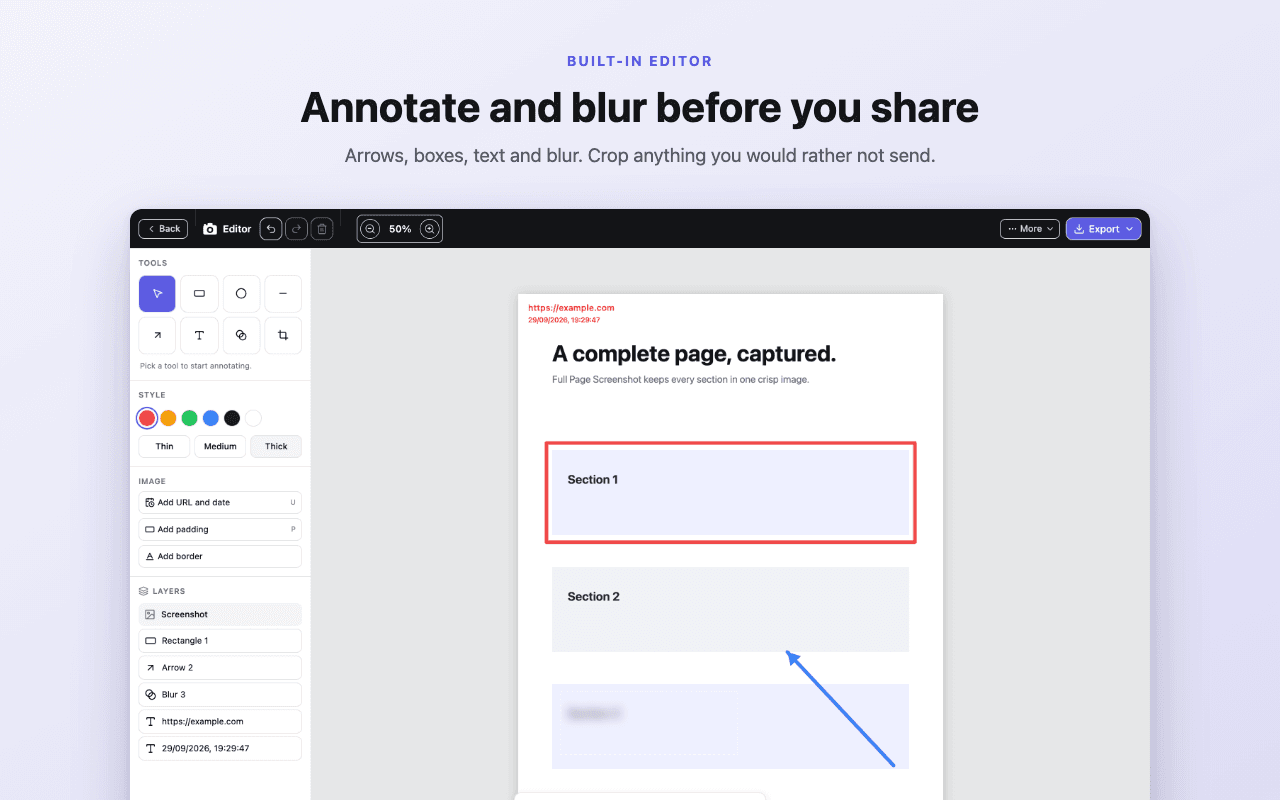
A review workspace opens automatically; click Edit to crop and zoom, add text, rectangles, ovals, lines and arrows; blur anything sensitive. Undo and redo as you go.
Annotations stay editable — move, reformat or delete them at any point.
Download as PNG, JPEG or PDF, copy the PNG to your clipboard, or keep the capture in the local screenshot library and retake the page if it has changed.
Image quality, PDF page size, orientation and download preferences are all configurable.
Starts a capture on the active tab. Remappable from the Chrome extension shortcuts page.
TAKE A LOOK INSIDE
From first click to final file.
Explore the capture, editor, and export screens.
Put your feedback right on the page.
Use the editing workspace to add text, shapes, and arrows, or blur selected areas before you share.
Stop cropping your work
to fit a viewport.
 Add to Chrome — free