
Save the whole webpage as a PNG.
Keep small text, interface details, and annotations clear in a lossless image you can download or copy to the clipboard.
WHEN TO CHOOSE PNG
A good fit for your workflow.
Design reviews, bug reports, documentation, and slides that need crisp screenshots.
Before you export
PNG files can be larger than JPEG, especially for long pages with lots of photographs.
FROM PAGE TO FILE
How to export as PNG.
Capture the page
Open the webpage and start a capture from the extension. Keep the tab visible while it scrolls and stitches.
Add your context
Crop to the relevant area, point out an issue with an arrow, or add a text note in the editor.
Download or copy
Select PNG and export the image. Use the clipboard option when you want to paste directly into a message or issue.
A FEW USEFUL DETAILS
About PNG exports.
- Does PNG preserve screenshot quality?
- PNG uses lossless compression, so encoding the image does not introduce JPEG-style compression artifacts. The result still depends on the original page and capture resolution.
- Can I paste the capture without saving a file?
- Yes. Copy the PNG from the editor, then paste it into an application that accepts images from the clipboard.
- Will the text be editable?
- No. A screenshot stores the page as pixels, not as a document with editable text.
Lossless image
Crisp details for visual feedback
Choose a lossless image for small text, UI details, and annotations. Copy it to your clipboard or save the file.
Explore PNG →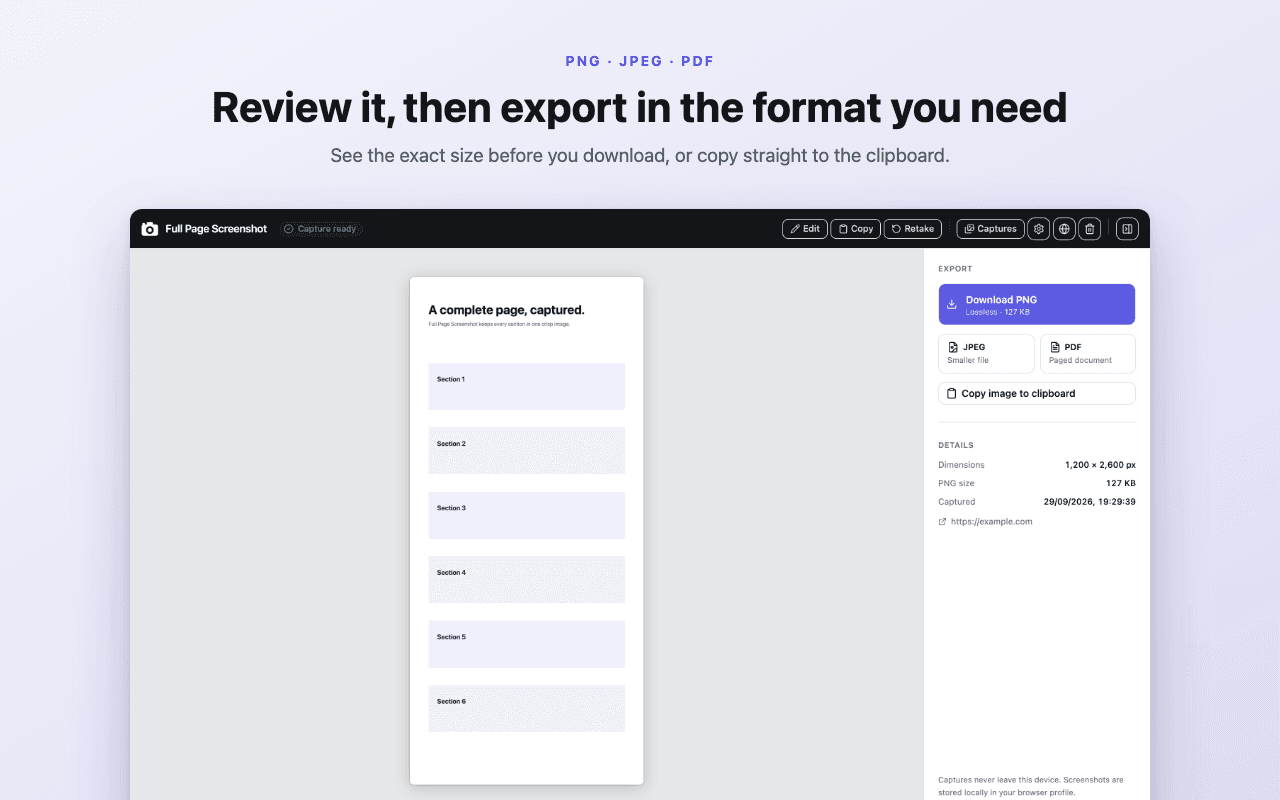
Explore another format
Stop cropping your work
to fit a viewport.
 Add to Chrome — free